
How to Roll Back a Published Web Page
You asked your assistant to fix one paragraph and it rewrote the page. The version that was working is no longer the one your link opens, the client you sent it to yesterday is looking at something else, and you did not keep a copy.
That is what a rollback is for. Every publish, in-place update, and rollback on SnapHost saves the site's state as a version, so you can roll back a published web page to any of those versions and the link stays exactly where it was.
What rolling back a published web page actually does
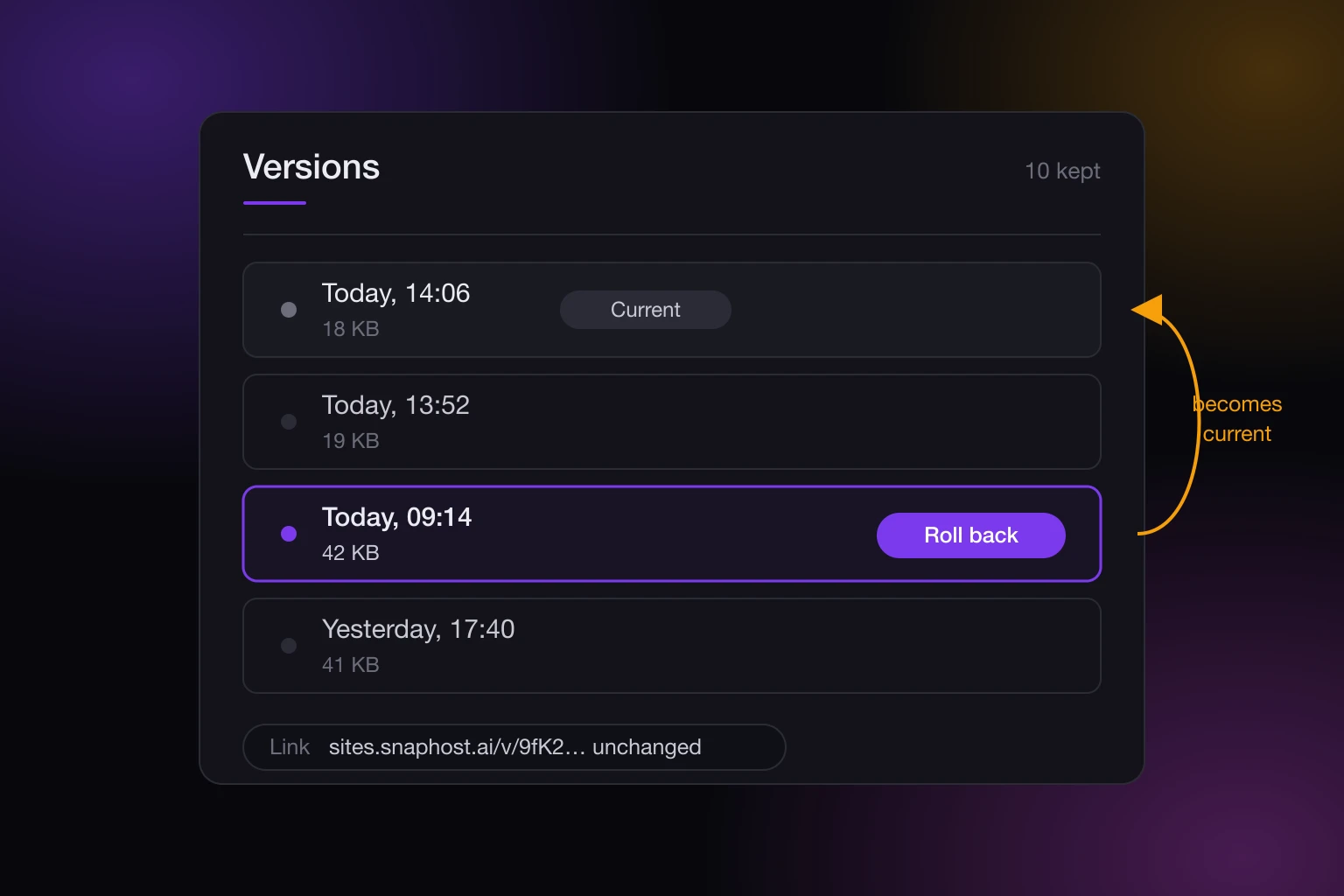
A rollback copies an earlier version's content onto the site you already have. The site keeps its address, its share link, its visibility setting, and its allowlist. Whoever could open the page before the rollback can open it after, and the rollback does not add anyone.
It is not a destructive undo. The rollback is itself recorded as a new version, so the thing you rolled away from is still sitting in the history. If it turns out the rewrite was fine and you moved too fast, you go forward to it the same way you went back.
Version history and rollback are part of Pro, at EUR 19 per member per month. On a plan without the entitlement, a rollback is refused with a message that says which plans have it, rather than quietly doing nothing. The pricing page has the full comparison.
Why this bites harder when an AI is doing the publishing
When you edit a page by hand, you see the change before anyone else does. When an assistant edits and publishes in one step, the first person to see the change might be your reader.
The gap is not that AI writes worse pages. It is that a one-line instruction can produce a very large diff, and the assistant has no idea which version a person is currently looking at. "Tidy up the intro" is a small request that can come back as a restructured document. The page that goes live is the one your assistant just made, not the one you approved on Tuesday.
There is one floor under this. Automated publishes from the API or an MCP server to a single site are held to a minimum gap of one per sixty seconds, so an assistant stuck in a loop cannot rewrite the same page thirty times in a minute. That bounds the mess. It is not a review step, and it does not stop a single bad publish.
Find the version you want
Open the site from your dashboard and go to its Versions tab. The history lists versions newest first, with when each one was published and how large it was.
Size is more useful here than it sounds. A rewrite that stripped half your page shows up as a version a fraction of the previous one's size, and a version that is suspiciously close in size to the one before it was probably a small edit. What the history gives you is dates and sizes, not a line by line diff of two versions, so if you need to be certain which one is right, roll back and look at the page.
Roll back, check the live page, and roll again if you picked the wrong one. Because each rollback appends to the history rather than overwriting it, guessing twice costs you nothing but two entries in the list.
Roll back from wherever you published
If your assistant published the page, it can also fix it. The MCP server exposes list_versions, which returns a site's versions newest first with their size and timestamp, and rollback_site, which restores a chosen version as the current content with the link unchanged. So "put the page back the way it was this morning" is something you can say in the same chat window where the damage was done.
The MCP server and API tokens are included on every plan, the free tier included. The rollback itself still needs a plan with version history, so on Free the tool is reachable and the action is refused.
What a rollback does not touch
A rollback changes the site's content and the bookkeeping that goes with it: the entry file, the content hash, the byte size, the file count, and the kind of content. It leaves the rest of the site alone.
That means your share link, the site's visibility, its allowlist, and its view password all survive a rollback untouched. Viewers you invited stay invited. A private site does not pop back to public because you restored a version from when it was public.
It also means the data your published page has collected is not part of the rollback. If your page has been taking form submissions or writing records, rolling the page back to last week's version restores last week's page, not last week's records. The submissions that arrived in between are still there. That is usually what you want, and it is worth knowing before you assume a rollback resets everything.
What Free keeps, and what it does not
On the free plan the question changes shape, because there is nothing to go back to. Free gives you three sites on sites.snaphost.ai, carrying a SnapHost watermark, and you can update each in place at the same link as often as you like; what Free does not keep is the history.
A plan without version history also keeps only the current content of a site. There is no earlier state to go back to, because the older bundles are pruned as soon as a newer one lands. If you are handing links to clients and you expect to iterate on the page, that is the practical reason to be on a paid plan rather than the watermark.
The history holds ten versions
A plan with version history keeps the ten most recent versions of a site. When an eleventh lands, the oldest is pruned and its stored content is deleted, unless a version still in the window points at the same content.
Ten is generous for a page you touch weekly and tight for a page an assistant is iterating on. An afternoon of ten republishes will push the morning's good version out of the window, and once it is pruned it is gone rather than archived somewhere colder. If you are about to let an assistant work through a long list of changes on a page that already had a version worth keeping, the cheap insurance is to keep your own copy of that file before you start.
Publish in a way that makes rollback rare
A few habits cut down how often you need any of this.
- Give a publish a stable slug. The first call creates the site and later calls with the same slug update it in place at the same URL, so you get one page with a history instead of eleven pages with eleven links. The publishing docs cover how content gets in.
- Know your last good version before you start a round of edits, not after. It takes ten seconds in the Versions tab and it is the piece of information you will want under pressure.
- Let an assistant iterate on a draft site, and move to the shared one when it is right. A site nobody has the link to yet can be rewritten as often as you like.
- Look at the live page after an automated publish, particularly the first one in a session. The versions and rollback docs describe what gets saved each time.
When a rollback is the wrong tool
Rollback answers "the page is wrong". It does not answer "the wrong person can open the page". Those are separate controls, and reaching for the wrong one wastes time while a link is still live.
If the problem is who has access, you want to remove a viewer from the allowlist, set an expiry on the link, or take the site offline. Those are covered in how to revoke access to a shared link. Rolling the content back to a version from before you shared it does not un-share anything, because the share link and the allowlist are not part of what a rollback restores.
And if the page was never right in the first place, there is no good version to go back to. Rollback is a safety net for work that was correct once. Making the page correct in the first place is still the job.